A WordPress site rarely breaks because of one big mistake. It drifts: updates pile up, a plugin is abandoned by its author, a form quietly stops sending, a backup hasn’t been tested for a year. A maintenance checklist exists to stop that drift before it becomes an emergency.
This is the checklist we use as a starting point for business sites. Adapt it to yours — a busy WooCommerce store needs more than a five-page brochure site — but keep the rhythm.
Before you start: know what you’re maintaining
A checklist only works if you know what “working” means for your site. Spend half an hour writing down the basics once, and every future check gets faster:
- Where the site lives: hosting account, domain registrar, DNS provider, and who can log in to each.
- What it runs on: the theme, the list of plugins and which of them are premium, with licence owners.
- What matters most: the three to five pages and journeys that bring in business — usually the homepage, the main service pages and the enquiry form.
- What it connects to: email delivery, CRM, booking tools, payment gateways, analytics.
That list becomes the reference for every “check key pages” step below. It also makes a handover much easier if someone else takes over.
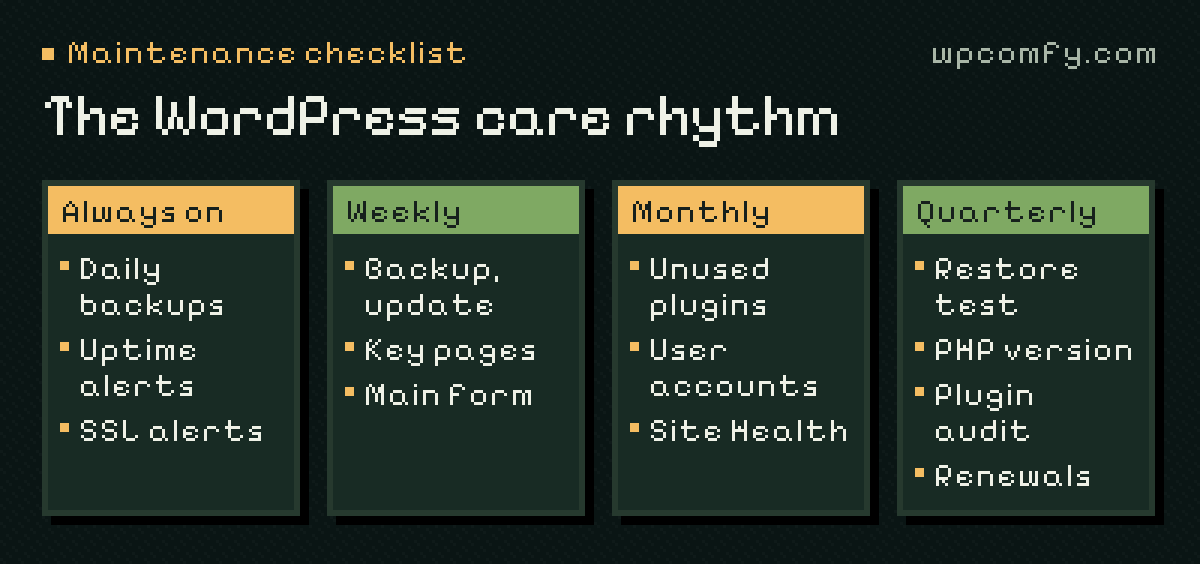
Continuous: the things that run in the background
Some tasks shouldn’t wait for anyone to remember them. Set them up once and check they keep working:
- Daily off-site backups of files and database, with several restore points kept.
- Uptime monitoring that alerts when the site stops responding.
- SSL certificate monitoring, so an expiring certificate is caught before visitors see a warning — see why certificates still expire.
If you only do one thing from this list, make it the backup — and test that it restores.
Weekly tasks
- Review available updates for WordPress core, themes and plugins. Read changelogs for anything marked as a major release.
- Apply updates with a fresh backup first, in a sensible order. Our step-by-step update routine covers this in detail.
- Check key pages after updating: homepage, main service pages and anything with custom functionality.
- Test your most important form — the enquiry or contact form that brings in business.
- Glance at monitoring alerts from the past week, even the ones that resolved themselves.
When you review updates, sort them before applying anything. Security releases should go in promptly. Minor maintenance releases can follow your normal routine. Major versions — a new page builder release, a WooCommerce extension that changes how checkout works — deserve a closer look and, ideally, a test on a staging copy first.
Monthly tasks
- Remove what you don’t use. Deactivated plugins and unused themes still need updating — or deleting.
- Review user accounts. Remove people who no longer need access and check that administrators are really administrators.
- Check Site Health (Tools → Site Health) for new warnings about PHP, HTTPS or scheduled tasks.
- Look at performance on a key page, especially on mobile. A sudden slowdown often points to a new plugin or a growing database — see how to speed up a slow site.
- Scan error logs for repeated PHP warnings that hint at an upcoming problem.
- Write a short summary of what was done and what needs a decision. Future you — or your client — will thank you.
Quarterly tasks
- Test a full restore to a staging environment, not just the existence of backup files.
- Review your PHP version against what WordPress recommends and what your host supports. See our guide to choosing a PHP version.
- Audit plugins: which are still maintained, which have licences about to expire, which could be replaced by something simpler. Our plugin audit guide walks through it.
- Check domain and hosting renewals, including the payment method on file.
- Revisit analytics for pages that lose visitors or forms that are rarely completed.
Extra checks for WooCommerce stores
A store has more moving parts, and the most important one — checkout — can fail without the homepage looking any different. On top of the routine above:
- Test the purchase journey after updates, from product to order confirmation, using a staging copy or the payment provider’s test mode. Our guide to testing checkout without real payments explains how.
- Check order emails — the customer confirmation and the notification your team relies on.
- Watch for “outdated template” notices in WooCommerce → Status after theme or plugin updates. They explain themselves in our note on outdated templates.
- Keep an eye on payment gateway notices, such as API changes or required plugin updates from the provider.
The full list lives in our WooCommerce maintenance checklist.
Keep a simple maintenance log
A log turns “I think we updated that” into something you can check. It doesn’t need special software — a shared document is enough. For each session, note:
- The date and who did the work.
- What was updated, with version numbers for anything major.
- What was checked, and how (“sent a test enquiry, arrived in the inbox”).
- Anything unusual, and what was done about it.
- Decisions for later: a plugin to replace, a renewal to approve, a warning to investigate.
When something breaks months later, the log is often the fastest way to find out what changed.
Signs the routine is slipping
Most sites don’t fail suddenly; the warning signs are visible for months. If any of these sound familiar, the checklist isn’t being followed:
- The Updates screen shows plugin updates that are weeks or months old.
- Nobody can remember when a backup was last restored — or where the backups are stored.
- Someone outside the business still has an administrator account.
- A customer tells you the contact form didn’t work before any check did.
- Site Health has shown the same warning for so long that everyone ignores it.
What you can safely skip
A checklist is only useful if it gets done. Some popular tasks add little for most business sites: running several security plugins that overlap, “optimising” the database every week, or chasing a perfect performance score at the expense of features that actually convert. Focus on the tasks above; they cover the failures we see most often.
When to hand it over
If the checklist keeps slipping to the bottom of your list, that’s a signal rather than a failing. Maintenance is routine work that rewards consistency. A WordPress care plan turns this checklist into a schedule someone else keeps — with a monthly report, so you can still see what was done.
Frequently asked questions
How often does a WordPress site need maintenance?
Some tasks are continuous (uptime and SSL monitoring, daily backups), updates are best handled weekly or every two weeks, and deeper reviews — performance, users, plugins you no longer need — fit a monthly or quarterly rhythm.
Can I automate WordPress maintenance completely?
Backups, monitoring and many minor updates can be automated. What can’t be automated is judgement: reading changelogs, checking that key pages and forms still work, and deciding what to do when something looks wrong.
What is the most important maintenance task?
A recent, off-site backup that you know can be restored. Every other task is safer when there is a reliable way back.
How long does monthly WordPress maintenance take?
For a typical business site with a steady routine, the recurring work is modest. It grows quickly when updates are left for months, when there is no staging copy, or when the site relies on many premium plugins and custom code.
Is a maintenance checklist different for WooCommerce?
Yes. A store adds checkout, payment and email checks, closer attention to WooCommerce and extension updates, and a safe way to test purchases without charging real customers.