When a WordPress site feels slow, the temptation is to start again with something “faster”. In practice, most slow sites have a handful of specific causes that can be fixed on the site you already have — as long as you measure first and fix in the right order.
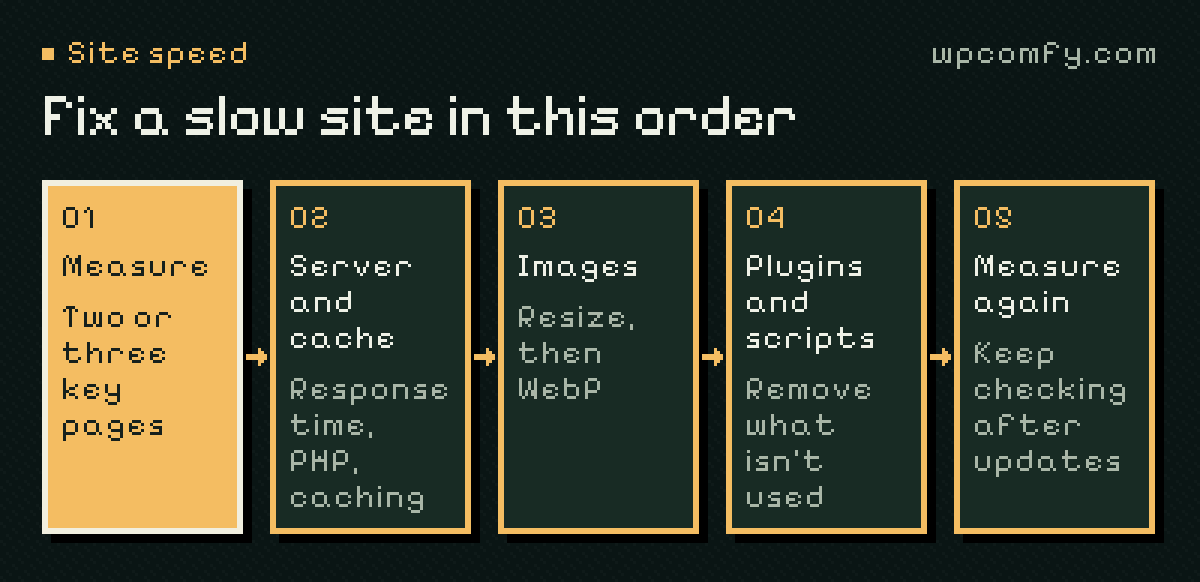
Measure before you change anything
“It feels slow” is a starting point, not a diagnosis. Pick two or three pages that matter — the homepage, a key service page, the contact page or a product page — and test them the same way each time:
- PageSpeed Insights shows lab results and, if your site has enough traffic, real-visitor data (Core Web Vitals).
- Search Console → Core Web Vitals groups slow pages across the whole site.
- Your browser’s developer tools (Network tab) show which files are large or slow to arrive.
Write down the results. Without a baseline you can’t tell which change helped — or which one made things worse.
Core Web Vitals in plain English
Google’s Core Web Vitals are a useful way to describe what “slow” means for a real visitor. There are three, each with a threshold for a good experience:
- Largest Contentful Paint (LCP) — how long until the main content, usually the hero image or heading, appears. Good is 2.5 seconds or less.
- Interaction to Next Paint (INP) — how quickly the page responds when someone taps or clicks. Good is 200 milliseconds or less.
- Cumulative Layout Shift (CLS) — how much the layout jumps around while loading. Good is 0.1 or less.
Each points to different fixes. A slow LCP usually means a slow server or a heavy hero image. A poor INP points to too much JavaScript. A high CLS often comes from images without dimensions, late-loading fonts or banners that push content down.
Check the server response first
If the first byte of the page takes a long time to arrive, no amount of image compression will fix it. A slow server response usually comes from overloaded or under-powered hosting, an outdated PHP version, heavy database queries from plugins, or no page caching at all.
Checking the PHP version and whether page caching is working is quick. If both are fine and the response is still slow, the hosting itself may be the bottleneck.
Fix images — usually the biggest easy win
Photos uploaded straight from a phone or camera can be several megabytes each. WordPress creates smaller sizes, but themes don’t always use them. Worth checking:
- Resize oversized originals and compress them — an optimisation plugin can do this for existing images too.
- Serve modern formats such as WebP where your setup supports them.
- Lazy-load images below the fold, but not the main image at the top of the page.
- Give images width and height so the layout doesn’t jump while they load.
Turn on the right caching
Page caching stores a ready-made copy of each page so WordPress doesn’t rebuild it for every visitor. It’s often the single biggest improvement for brochure sites and blogs. Browser caching and compression (gzip or Brotli) help repeat visits and file sizes.
Look at what plugins add to every page
Some plugins load their scripts and styles on every page, even where they’re not used: sliders, form builders, chat widgets, social feeds. Others run slow database queries in the background. A plugin audit often finds features nobody uses any more.
Be careful with “optimise everything” settings that combine, minify or delay all scripts. They can help, but they can also break menus, forms or checkout. Change one thing at a time and re-test the key pages — ideally on a staging copy.
Look behind the scenes: database and scheduled tasks
Some slowness never shows up in a page-weight report. Over years, the database collects post revisions, expired temporary data and settings left behind by removed plugins. Scheduled tasks can pile up too, running heavy jobs on page loads. Worth checking occasionally:
- Large numbers of revisions on frequently edited pages — limiting revisions in the configuration keeps this in check.
- Leftover tables and settings from plugins that were deleted long ago.
- Scheduled tasks (WP-Cron) that fail or run very often, visible in Tools → Site Health.
Clean up with a fresh backup first. Database “optimisation” buttons are fine occasionally, but they’re a tidy-up, not a cure for a slow server.
Fonts: small files, big impact
Web fonts often delay the first readable text. Load only the weights and styles you actually use, host fonts on your own server where the licence allows, and use font-display: swap so text appears straight away in a fallback font. Two families in three weights is plenty for most business sites.
Count the third-party scripts
Analytics, tag managers, chat, maps, embedded videos and marketing pixels all load code from other servers. Each one is small; together they can dominate the page. Keep what you actively use, load embeds only when someone interacts with them, and remove tags from campaigns that ended long ago.
What not to do
- Don’t stack speed plugins. Two caching or optimisation plugins fighting each other are slower than one configured well.
- Don’t optimise on the live site blindly. “Combine and delay everything” settings can break menus, sliders and checkout. Test on staging, or change one setting at a time.
- Don’t chase the score for its own sake. A 100 in a lab test with a broken enquiry form is a worse website than an 85 that converts.
The order that usually pays off
- Measure a few key pages and note the results.
- Confirm the server response time, PHP version and page caching.
- Fix oversized images.
- Remove unused plugins and third-party scripts.
- Only then try asset optimisation settings, one at a time.
- Re-measure, and keep checking after future updates.
Speed isn’t a one-off project. New plugins, campaigns and content slowly add weight, which is why performance checks belong in regular WordPress maintenance rather than in an emergency rebuild.
Frequently asked questions
Why is my WordPress site suddenly slow?
Common causes are a recent plugin or theme update, a new plugin that loads heavy scripts, large uploaded images, a full or struggling server, or a caching layer that was switched off. Check what changed recently before optimising everything else.
Will a caching plugin fix a slow site?
Page caching often helps a lot for visitors who aren’t logged in, but it doesn’t fix slow admin screens, heavy uncached pages such as carts, or a server that is overloaded. It works best alongside lighter pages and suitable hosting.
Should I aim for a 100 score in PageSpeed Insights?
No. The score is a lab estimate. What matters more is how fast real visitors see and use your key pages, which the Core Web Vitals field data in PageSpeed Insights and Search Console reflect.
Is it worth moving to faster hosting?
Sometimes. If the server response time is slow even for simple cached pages, or the host limits resources heavily, better hosting can make a bigger difference than any plugin. Measure first so you know the bottleneck is the server.