

WordPress security advice can sound alarming — thousands of attacks a day, endless settings to switch on. For a typical small business site, a short list of basics does most of the work. What matters is doing them consistently.
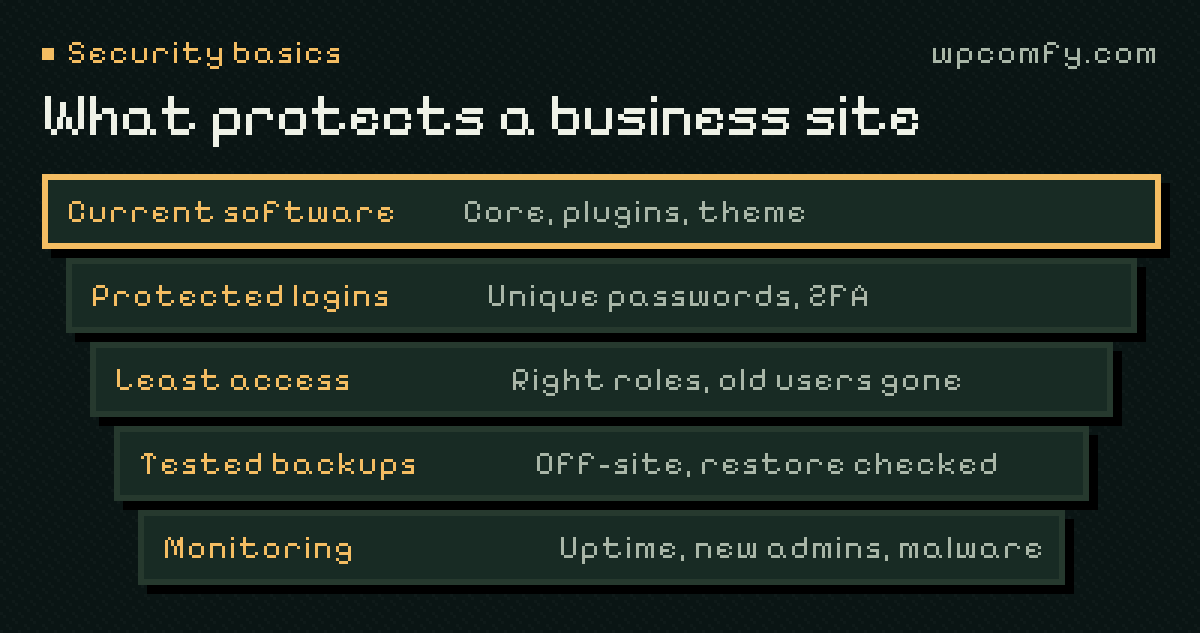
How most WordPress sites actually get compromised
Automated tools scan the internet for known weaknesses. They aren’t looking for your business; they’re looking for any site with an outdated plugin that has a published vulnerability, an admin account with a guessable password, or leftover files nobody remembers. That’s good news: those are things you can control.
Keep software current — especially plugins
Outdated plugins and themes are the most common entry point. Keeping them updated closes known holes before they’re widely exploited.
- Apply security releases promptly; follow a regular routine for everything else. Our update routine shows how to do it without breaking the site.
- Remove plugins and themes you don’t use. Deactivated code can still be a risk if it stays on the server.
- Avoid “nulled” premium plugins downloaded from unofficial sources — they’re a common way malware gets in.
Protect the logins
- Use unique, long passwords stored in a password manager.
- Turn on two-factor authentication for every administrator.
- Limit repeated login attempts, either at the host or with a security tool.
- Don’t share one admin account between people — give each person their own login.
Give people the least access they need
Most people who update content don’t need to be administrators. The Editor or Author role lets them publish without being able to install plugins or change settings. Fewer administrators means fewer powerful accounts to protect.
Have a way back
No security setup is perfect, so recovery is part of security. Keep automatic, off-site backups and, just as importantly, test that a restore works. A backup stored only on the same server can be lost or infected along with the site.
Choose hosting that does its share
Good hosting handles much of the security you can’t see: isolation between accounts, a current PHP version, server-level firewalls and malware scanning, and a valid SSL certificate that renews on time. Very cheap hosting often skimps on exactly these things.
Who is responsible for what
Security works best when everyone knows their part. A typical split for a small business site looks like this:
- The host: the server, its operating system and PHP versions, network-level protection and the isolation of your account from others.
- Whoever maintains the site: WordPress, plugin and theme updates, backups and restore tests, monitoring and the response to alerts.
- Your team: strong passwords and two-factor authentication, not sharing logins, and telling the maintainer when someone joins or leaves.
Problems usually appear in the gaps — for example when everyone assumes someone else removes a former employee’s account.
Notice problems early
Attackers don’t always deface a site. Sometimes they add spam links, redirect mobile visitors or create hidden users. Uptime monitoring, alerts for new administrator accounts and occasional malware scans help you notice before your customers — or Google — do.
Forms and spam
Contact forms attract automated spam, and a flooded inbox is how real enquiries get missed. A honeypot field or an invisible challenge stops most bots without bothering visitors. Just as important: don’t use forms to collect things you don’t need — passwords, card numbers or sensitive personal data have no place in a general enquiry form.
A 30-minute security check you can do today
- Open Dashboard → Updates and note anything that’s been waiting for more than a couple of weeks.
- Open Users, filter by Administrator, and question every account you don’t recognise.
- Check that two-factor authentication is on for your own account.
- Find your latest backup and confirm it’s stored somewhere other than the hosting account.
- Look at Tools → Site Health for warnings about PHP, HTTPS or outdated software.
- Delete plugins and themes that are installed but not used.
If that list turns up surprises, you’ve found your priorities for the month.
If something looks wrong
Unknown admin users, strange redirects on mobile, spam pages in search results or a warning from your host are all signs worth acting on quickly — but calmly:
- Take a copy of the site as it is now. It helps find out what happened.
- Change passwords for WordPress administrators, hosting, FTP and the database.
- Remove unknown users and check recently modified files if you can.
- Contact your host; many can help scan and isolate the problem.
- Only then restore a clean backup — and close the hole that let the attacker in, or the same thing will happen again.
What looks secure but helps less than you’d think
- Hiding the WordPress version or login URL — mildly useful, but no substitute for strong logins and updates.
- Stacking several security plugins — they can conflict and slow the site. One well-configured tool is better.
- A security badge on the footer — it reassures visitors, not attackers.
Security for a small business site is mostly routine: current software, protected logins, sensible access, tested backups and someone watching. It’s the same routine as good maintenance, done consistently. To see how your site looks from the outside — plugin versions, known advisories and SSL — run our free site check.
Frequently asked questions
Is WordPress secure enough for a business website?
WordPress core is actively maintained and security issues are fixed quickly. Most compromised sites are hacked through outdated plugins or themes, weak or reused passwords, or insecure hosting — all of which can be managed.
Do I need a security plugin?
A security plugin can help with login protection, firewall rules and alerts, but it isn’t a substitute for updates, strong logins and backups. Choose one tool and configure it properly rather than stacking several.
How often should I update WordPress plugins for security?
Security releases should be applied promptly, ideally within days. Routine updates can follow a regular schedule with a backup first and checks afterwards.
What should I do if my site has been hacked?
Take a copy of the current state for investigation, change passwords, check for unknown admin users and contact your host. Restoring an older backup without finding the entry point often leads to the same problem again, so cleanup should include closing the hole.
Does my hosting company take care of WordPress security?
Partly. Good hosts protect the server and network and may scan for malware, but WordPress, plugin and theme updates, user accounts and backups you can restore are usually your responsibility or your maintainer’s.