Most WordPress updates go through without anyone noticing. That is the goal. But “most” is doing a lot of work in that sentence, and the difference between a quiet update and a stressful afternoon usually comes down to what happens before and after the button is pressed.
This note walks through the routine we follow for a typical business site. It isn’t the only way to do it, and your setup may need something different — but it shows the thinking behind each step.
Why updates can’t just be ignored
WordPress core, themes and plugins are updated for three broad reasons: security fixes, compatibility with newer versions of PHP and WordPress, and new or changed features. Skipping updates for a while rarely breaks anything on the day. The cost arrives later, when several months of changes land at once and are much harder to untangle.
So the question isn’t really whether to update. It’s how to do it on a schedule, in a way that leaves a clear way back.
Not all updates are the same
It helps to sort updates before touching anything, because each kind deserves a different level of care:
- Security releases fix a known vulnerability. Once a fix is public, so is the weakness, which is why these should go in promptly — within days, not weeks.
- Minor releases fix bugs and small issues. They’re usually safe, but still belong in the routine with a backup and a check afterwards.
- Major releases change how a plugin or theme works — a new page builder version, a redesigned form plugin, a WooCommerce extension that reworks checkout. These are the ones to read about first and, ideally, try on staging.
Version numbers give a hint (a jump from 3.9 to 4.0 usually signals a major release), but the changelog is the real guide. Plugin authors often flag breaking changes, required PHP versions or database updates there.
Before anything changes: a fresh backup
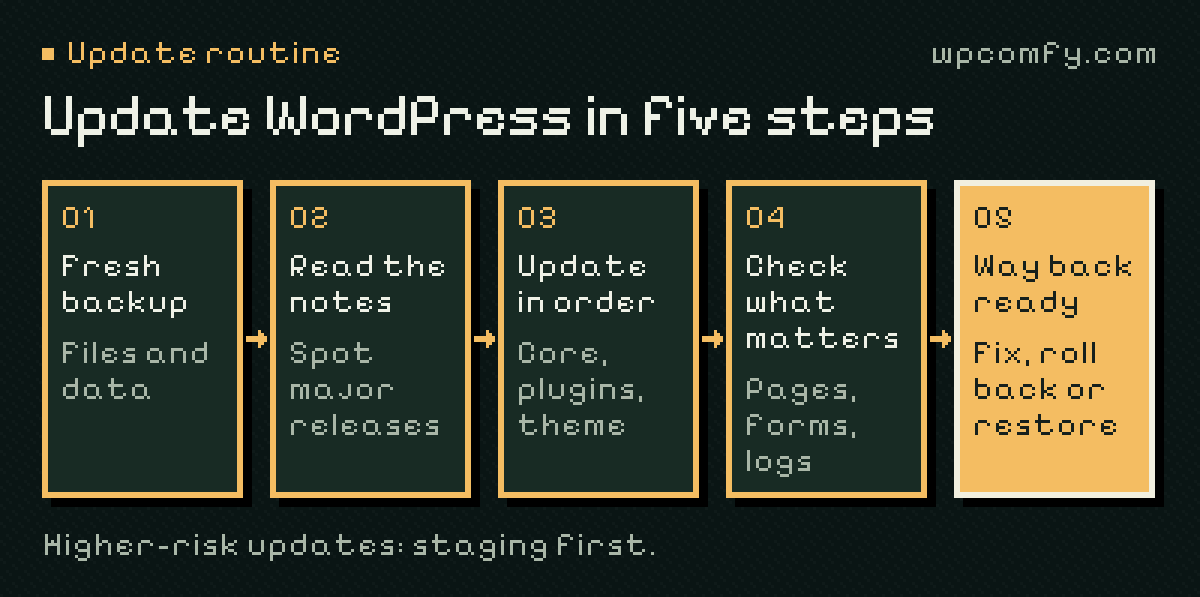
A scheduled daily backup is good. A backup taken minutes before an update is better, because it captures the site exactly as it was. We make sure there is a recent restore point for both the files and the database before touching anything.
# Export the database before updating
$ wp db export before-update.sql

# See what would change, without changing it
$ wp plugin update --all --dry-run
The dry run is a small habit with a big payoff. It shows which plugins have updates waiting, so larger jumps can be spotted and handled separately instead of being bundled with everything else.
The update itself, in a sensible order
Not every update carries the same risk. A minor plugin release is usually uneventful; a major version of a page builder or a WooCommerce extension deserves more care. A typical order looks like this:
- Read the changelogs for anything that looks like a major release or mentions breaking changes.
- Update WordPress core when a new release is available, then check the dashboard still loads.
- Update plugins in small groups, keeping the ones that shape the front end or the checkout apart from the rest.
- Update the theme last, especially if it is a parent theme with a child theme on top.
After: looking beyond “the homepage loads”
A homepage that loads is a good sign, not a full answer. After updates we check the pages and journeys agreed for that site — often the main service pages, the contact or enquiry form, and anything with custom functionality.
- Do key pages render correctly on desktop and mobile?
- Does the agreed form accept input and show its confirmation?
- Are there new PHP warnings or errors in the logs?
- For stores: can a product still be added to the basket and taken to checkout in a safe test setup?
The point of a routine isn’t to prevent every problem. It’s to notice problems quickly and have a clear way back.
Should you switch on automatic updates?
WordPress can update itself, and for some things that’s the right choice. Automatic minor core releases — the maintenance and security versions — are on by default and worth keeping. Automatic plugin updates are a judgement call:
- Reasonable to automate: small, well-maintained plugins that don’t affect how pages look or how visitors complete an action.
- Better in a routine: page builders, form plugins, WooCommerce and its extensions, anything with custom styling on top, and anything that has caused trouble before.
Automatic updates don’t remove the need for checks. They only move the moment something can break to a time when nobody is watching — which is why monitoring matters more, not less, when you automate.
Your PHP version is an update too
WordPress runs on PHP, and hosts retire older PHP versions over time. Moving to a newer version usually makes a site faster and keeps it on a supported release, but it can also expose old plugins or custom code that were never updated for it. Treat a PHP upgrade like a major update: backup, test on staging where you can, then check the site carefully. Our guide to choosing a PHP version covers the details.
When something does break
Sometimes an update introduces a conflict: a layout shifts, a form stops submitting, a plugin throws an error. Because there is a fresh restore point and a record of what changed, the options are clear — fix the conflict, roll back the one update that caused it, or restore the pre-update backup. Our guide to a site broken after an update walks through it step by step.
In our maintenance plans, dealing with a problem caused by an update we carried out is part of the maintenance work. It doesn’t come out of your development hours.
Keep a record of what changed
A short note after each update session saves hours later. Write down the date, what was updated (with version numbers for anything major), what was checked and anything unusual. When a problem appears weeks later, the first question is always “what changed?” — and a record answers it in seconds.
What you can do on your side
Even with someone looking after updates, a few habits help:
- Keep a short list of the pages and forms that matter most to your business.
- Remove plugins you no longer use rather than just deactivating them.
- Tell your developer before installing something new, so it can be included in the routine.
- Agree how often updates happen — our note on how often to update plugins suggests a rhythm.
And if you’d rather not think about any of this, that’s exactly what a care plan is for.
Frequently asked questions
Should I update WordPress core or plugins first?
Usually core first, then plugins in small groups, then the theme. Read changelogs first: some plugin updates require a newer WordPress version, others must be updated before it.
Do I need a backup before every update?
A backup taken right before updating is the simplest safety net. A daily backup may be hours old and miss recent orders or form entries.
Can I update WordPress without breaking my site?
Nobody can guarantee every update, but a routine — backup, small batches, staging for major releases and checks afterwards — makes problems rare and quick to reverse.
How long does a WordPress update take?
The update itself takes minutes. The backup, changelog review and checks afterwards are what take time — and what make the update safe.
Should I turn on automatic updates in WordPress?
Automatic minor core releases are a sensible default. Automatic plugin updates suit simple, well-maintained plugins; for plugins that shape the front end, forms or checkout, a routine with a backup and checks afterwards is safer.